
Learn how to add construction site calendars to your SharePoint site. This feature allows you to manage important dates and deadlines for your projects centrally, which increases your efficiency and improves collaboration, e.g. to show and hide material delivery dates directly in Outlook for three construction sites together with your other appointments.
The SharePoint calendar function
With SharePoint, you can easily create and manage construction site calendars for your projects. This function allows you to organise important dates and deadlines centrally and share them with your team.
Advantages of the SharePoint calendar function:
- Centralised management of deadlines for construction sites and projects
- Simple team collaboration through shared calendars
- Option to synchronise with Outlook
- Notifications of changes to appointments
Add a new calendar
Before you start, make sure that you have the necessary rights for your SharePoint site. You need owner rights to be able to add a calendar.
Navigate to the SharePoint page
To add a construction site calendar, first navigate to the desired SharePoint page. There are two options here:
About the Microsoft 365 logo:
- Click on the Microsoft 365 logo at the top left
- Select „SharePoint
- Search for your desired SharePoint site in the list
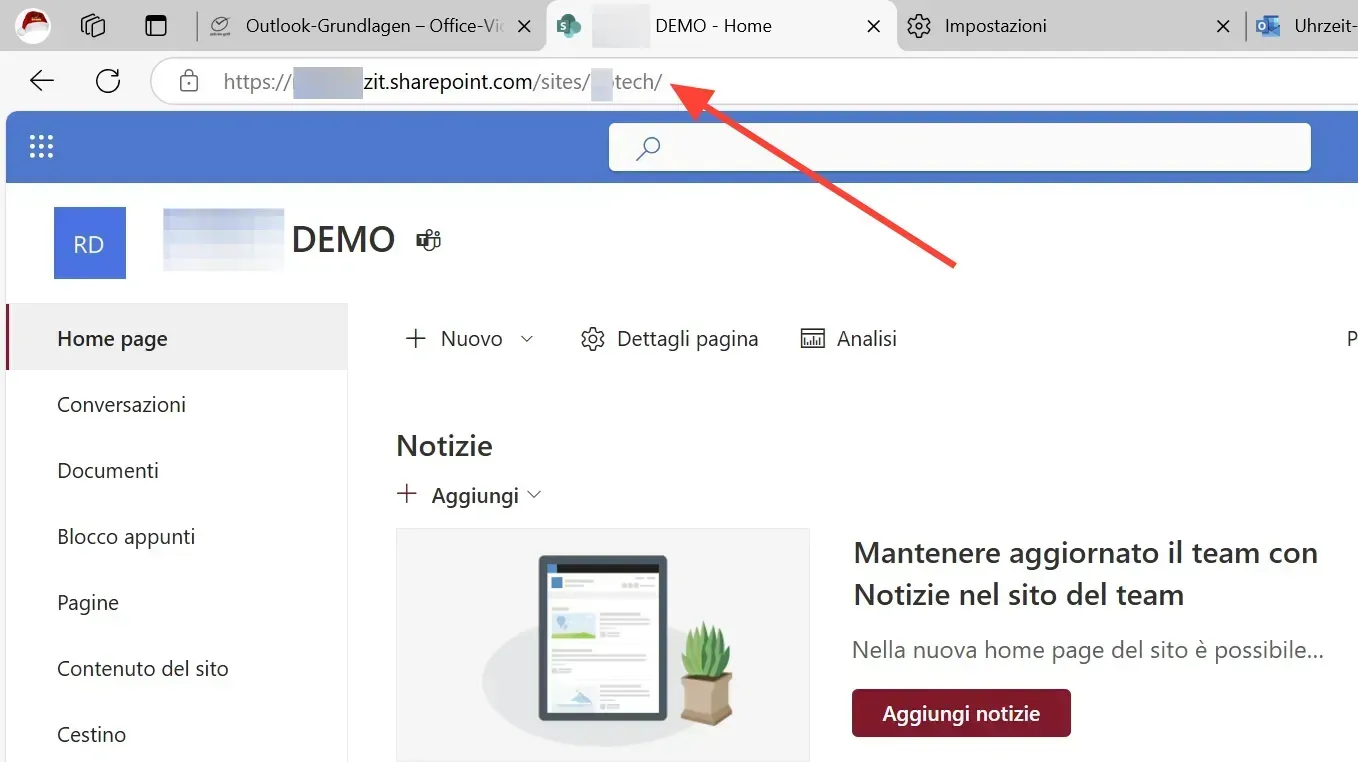
Directly via the URL:
- Open a URL of your SharePoint site (e.g. a folder in a document library)
- Remove everything after „/sites/page name/“ in the address bar
- Press Enter to go to the main page
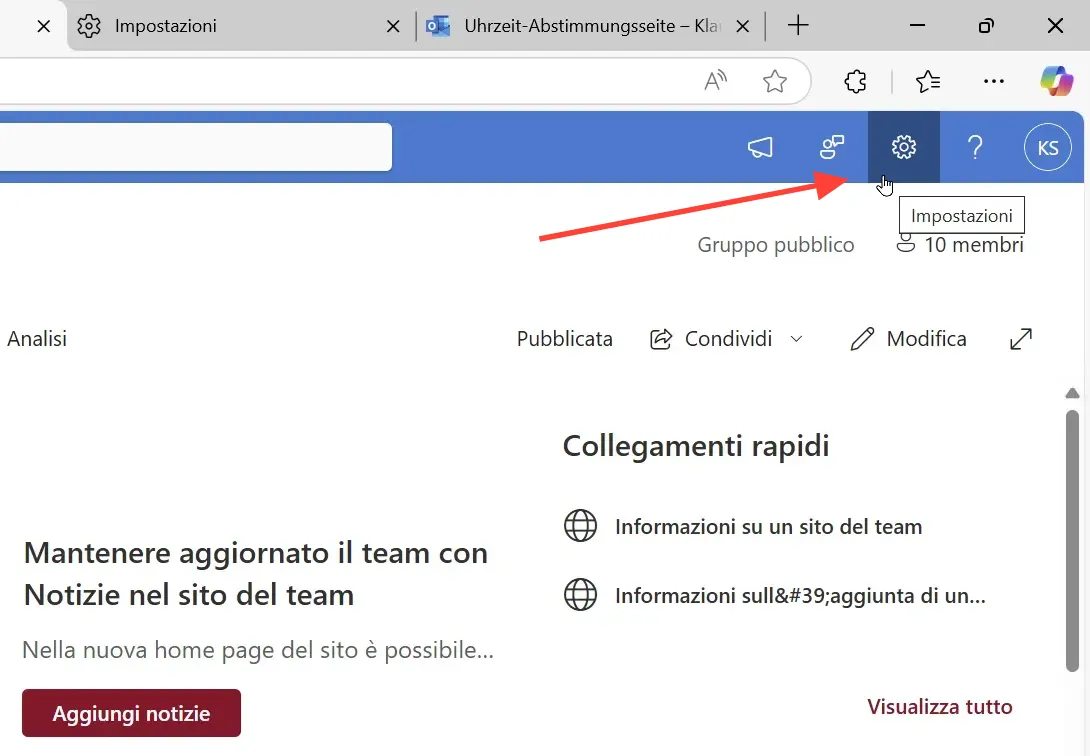
Add app: Find the cogwheel icon
Once you are on the main page, look for the gear icon in the upper right corner. Please note:
- The symbol may not appear immediately
- It can take 30 seconds to a minute before it becomes visible
- The page checks your authorisations in the background
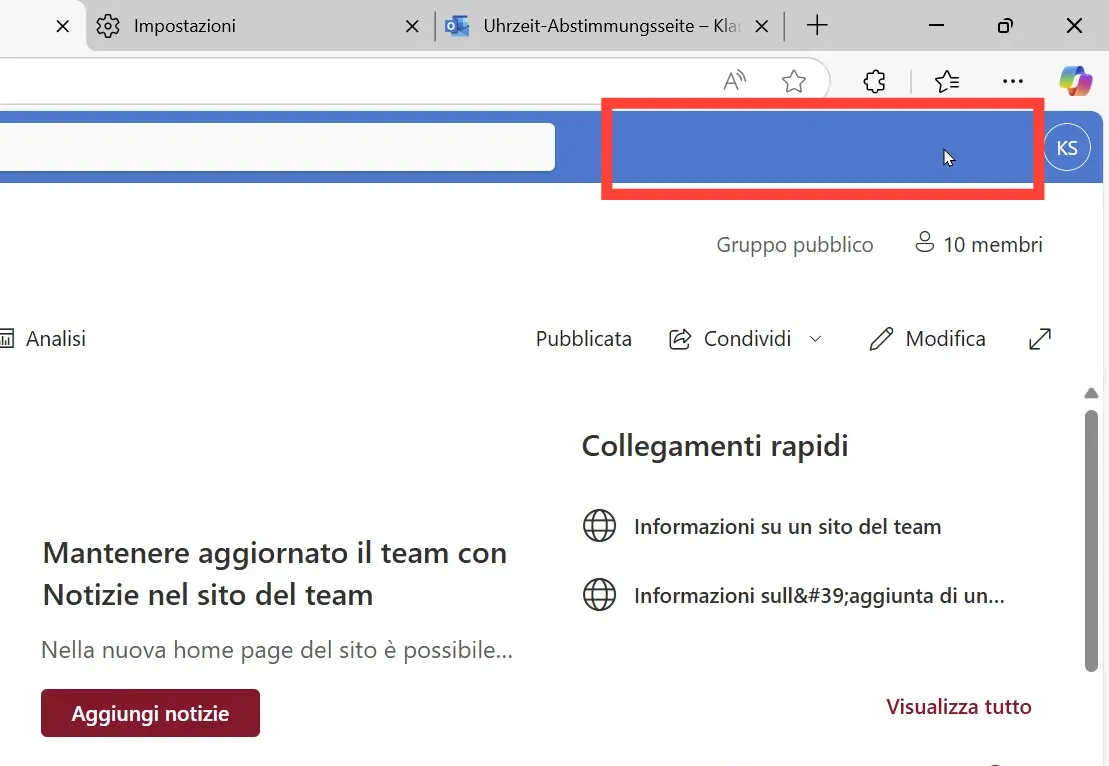
Be patient and wait a minute if you do not see a cogwheel symbol.
Add app: Step-by-step instructions
As soon as the cogwheel symbol appears, follow these steps:
- Click on the cogwheel symbol
- Select „Add app“ from the menu
- You will now see a list of available apps
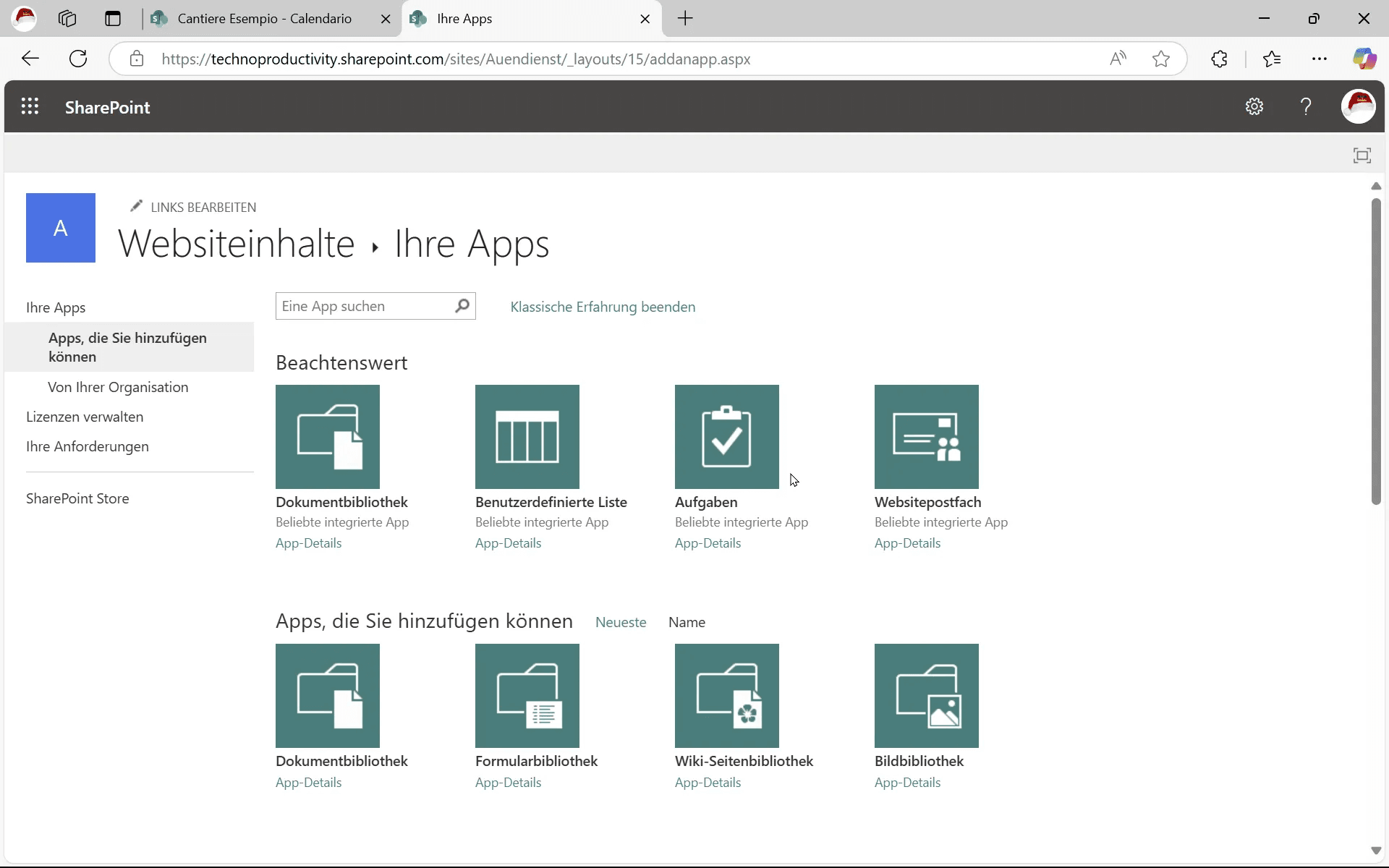
Switch to the classic interface
If you do not see the desired icons for the calendar and tasks:
- Scroll to the top of the app list
- Search for the link „Classic surface“
- Click on it to switch to the classic view
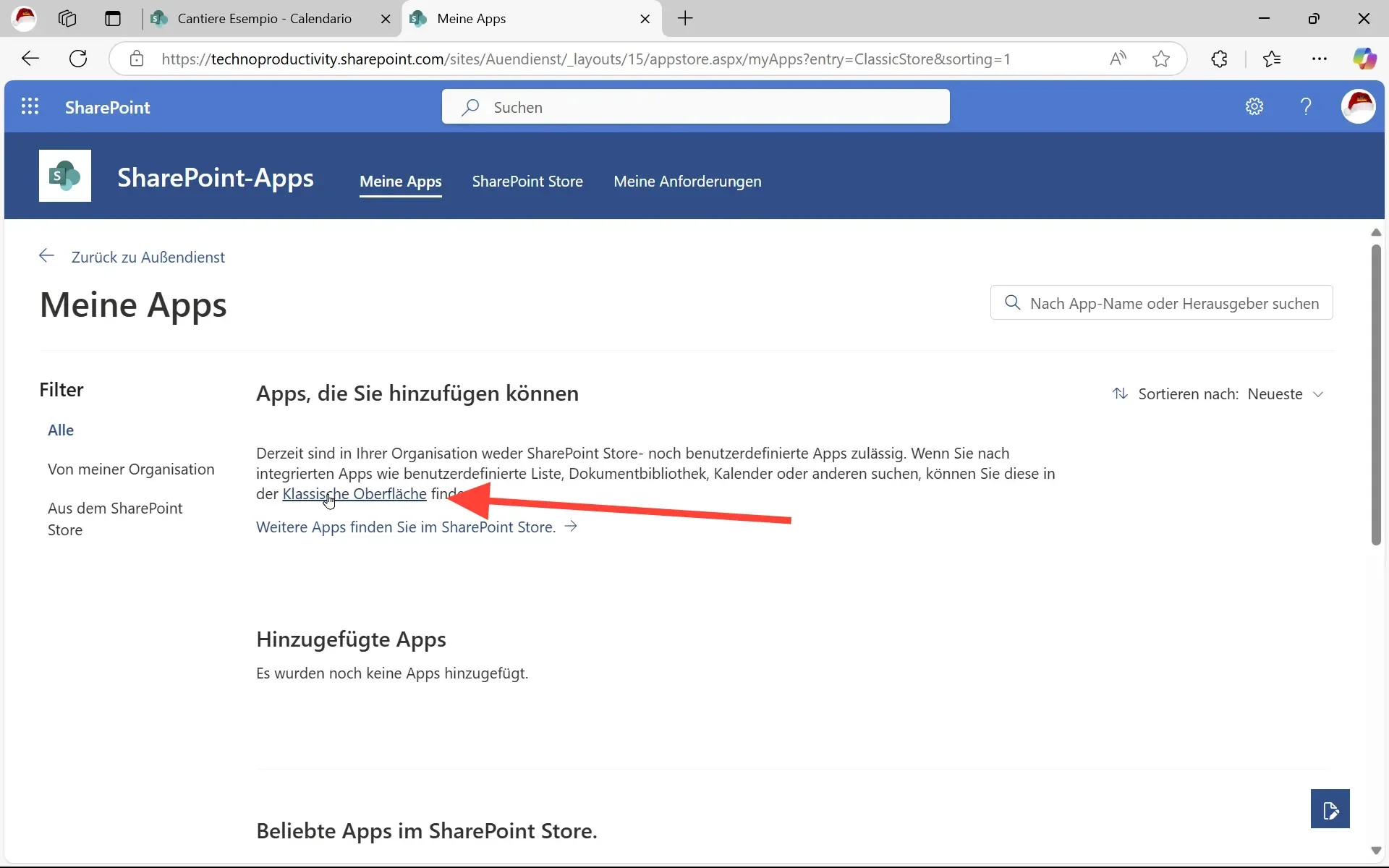
In the classic interface, you will find the standard SharePoint apps, including the calendar.
Adding a construction site calendar
You can now add the construction site calendar:
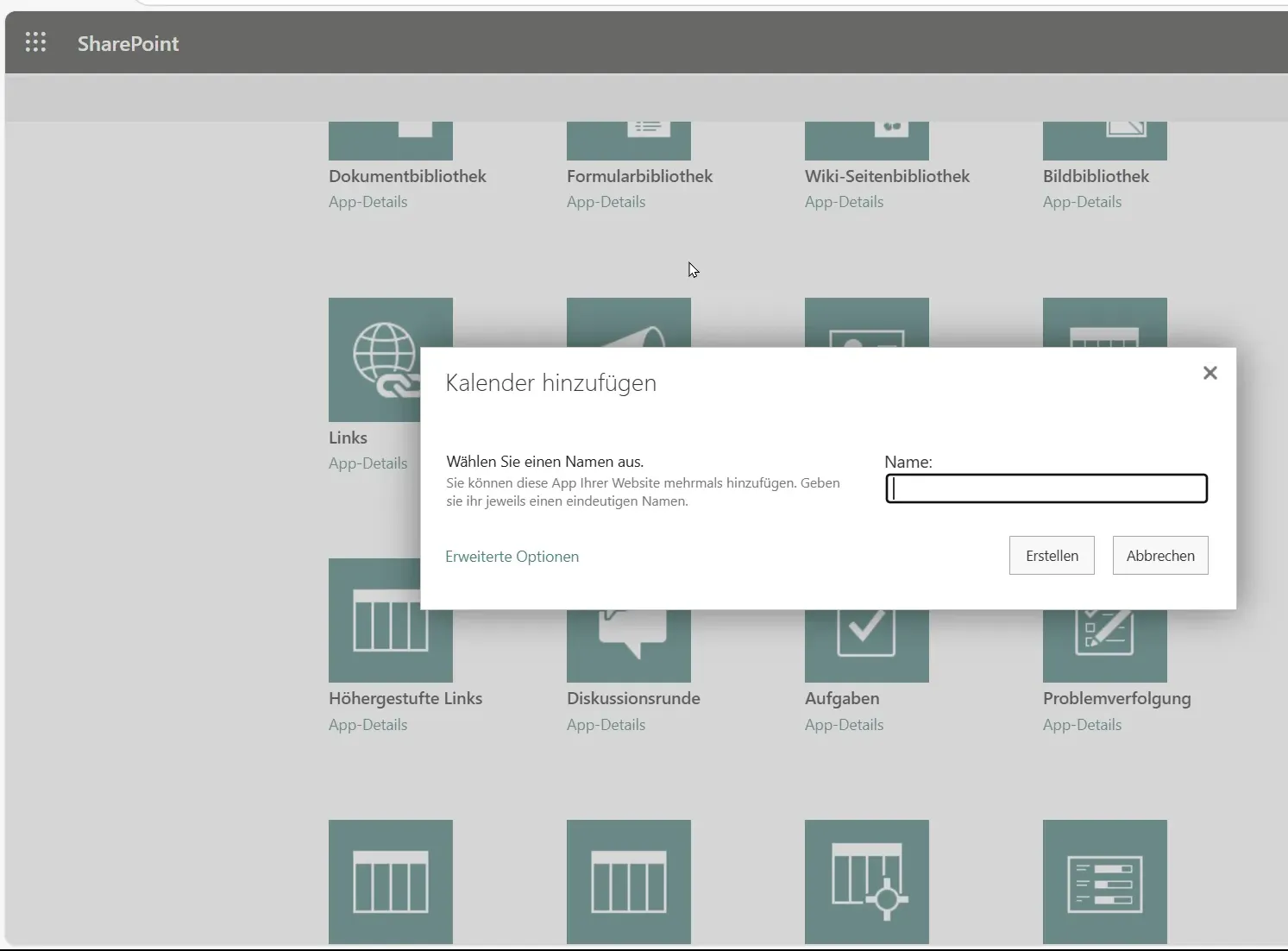
- Click on the calendar icon in the app list
- Wait a moment for the window to open
- Give the calendar a meaningful name
- Click on „Create“ to add the calendar
Important: Make sure that you create the calendar on the correct SharePoint page if you have several construction sites. or manage projects.
Tips for organising your calendar:
- Create a separate SharePoint page for each construction site or project, for example
- Create the calendar on the corresponding project page
- You can also have several calendars on one SharePoint page (e.g. if all construction sites in total or all construction sites for Milan should be on one page - if the same people should have access to all construction sites, this makes rights management easier).
After creating the calendar, you will find it in the list of your page contents. Click on the name of the calendar to open it.
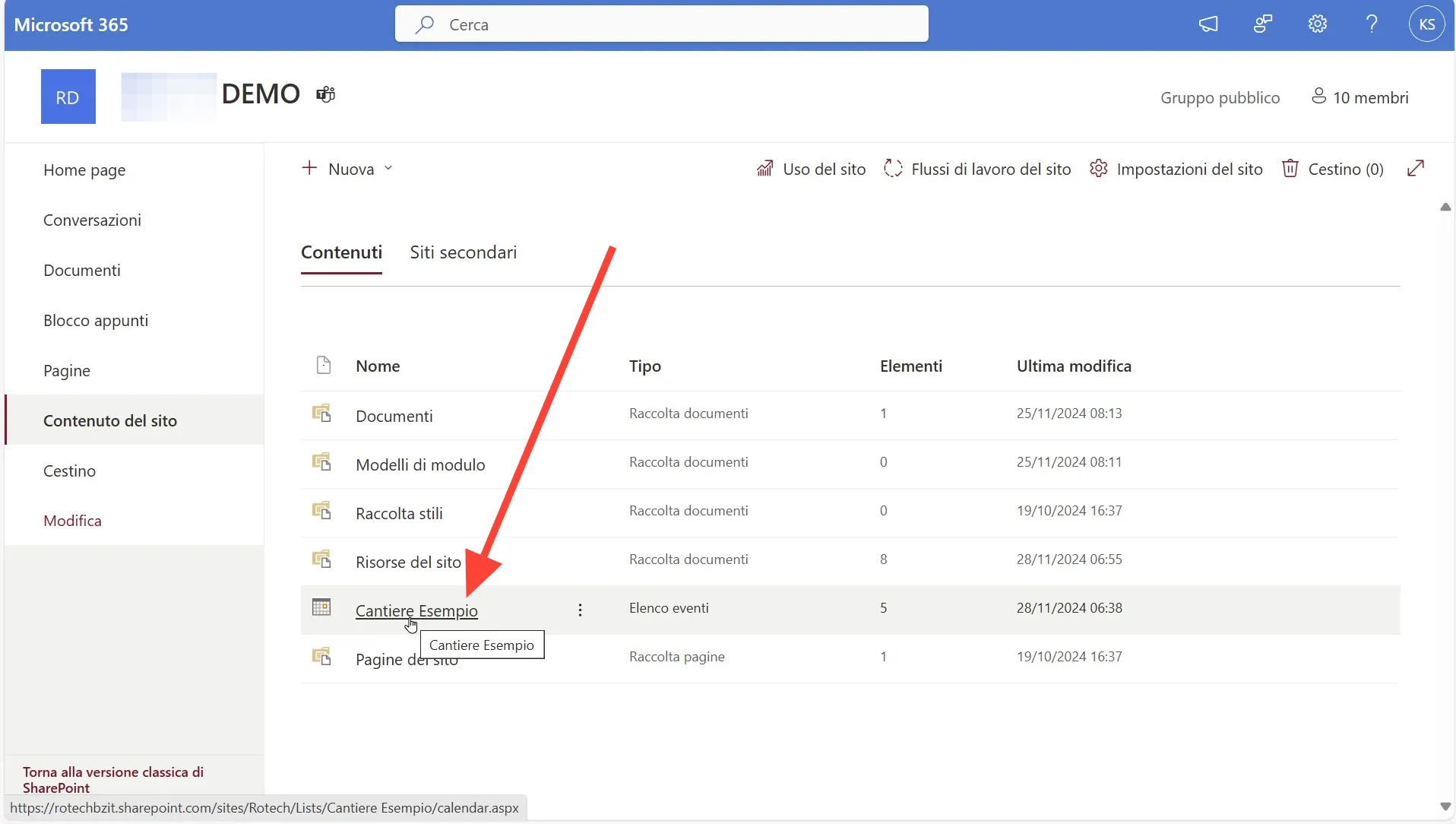
Display and share calendar content
After creating the calendar, you will find it in the list of your page contents. Click on the name of the calendar to open it.
- Copy the URL of the calendar from the address bar
- Share the link with colleagues by e-mail or in teams
- Use the notification function for important changes
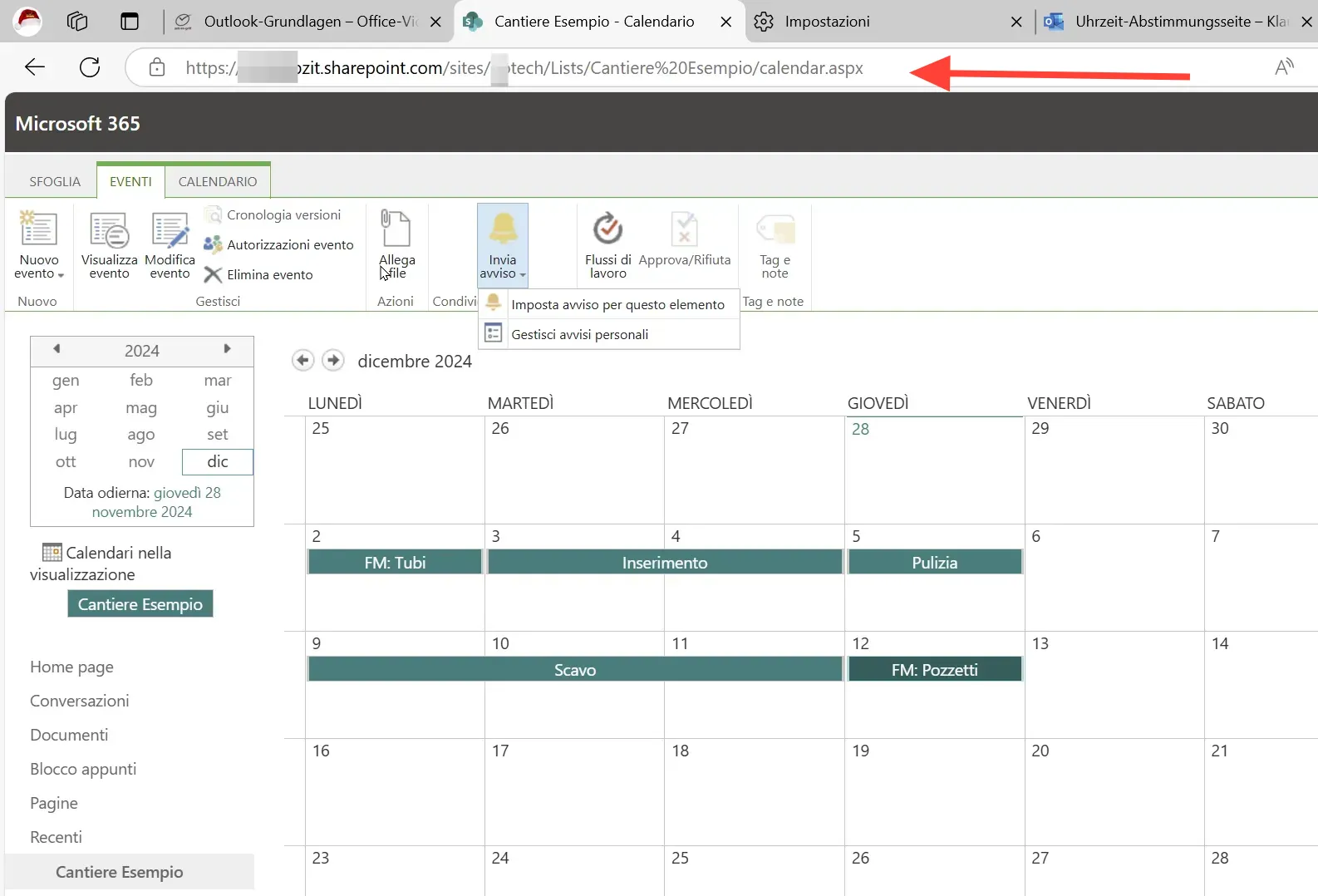
How to share the calendar with colleagues:
- Copy the URL from the address bar of the browser
- Share the link by e-mail, in teams or make a note of it in the construction site notebook
If you insert the link to the SharePoint calendar in an email or OneNote, the name of the calendar is normally displayed, not the cryptic hyperlink. This allows your colleagues to see directly which calendar it is.
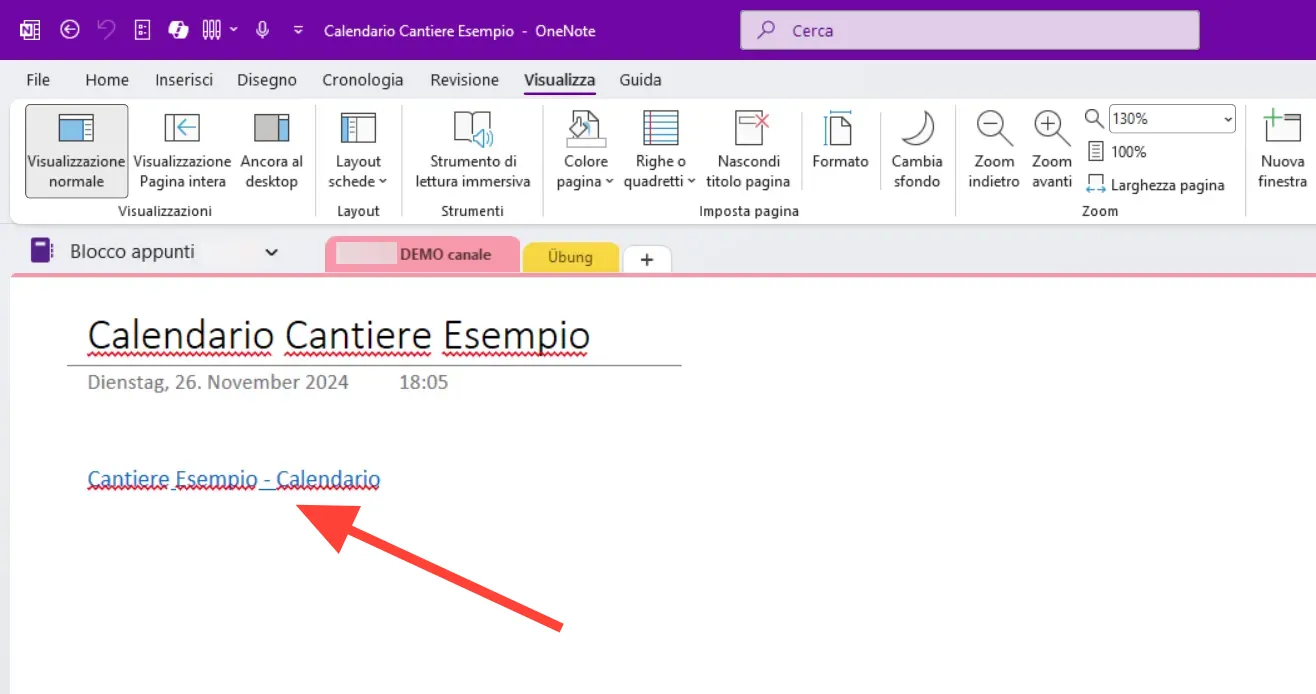
With these steps, you have successfully added a construction site calendar to your SharePoint site. In the next section, you will learn how to set up notifications and synchronise the calendar with Outlook.
Set notifications for calendar events
You can set up notifications for individual events or for the entire calendar. This is particularly useful for keeping up to date with changes.
Notifications for individual events:
- Select an event in the calendar
- Click on „Set notification“ at the top“
- Select the desired notification options
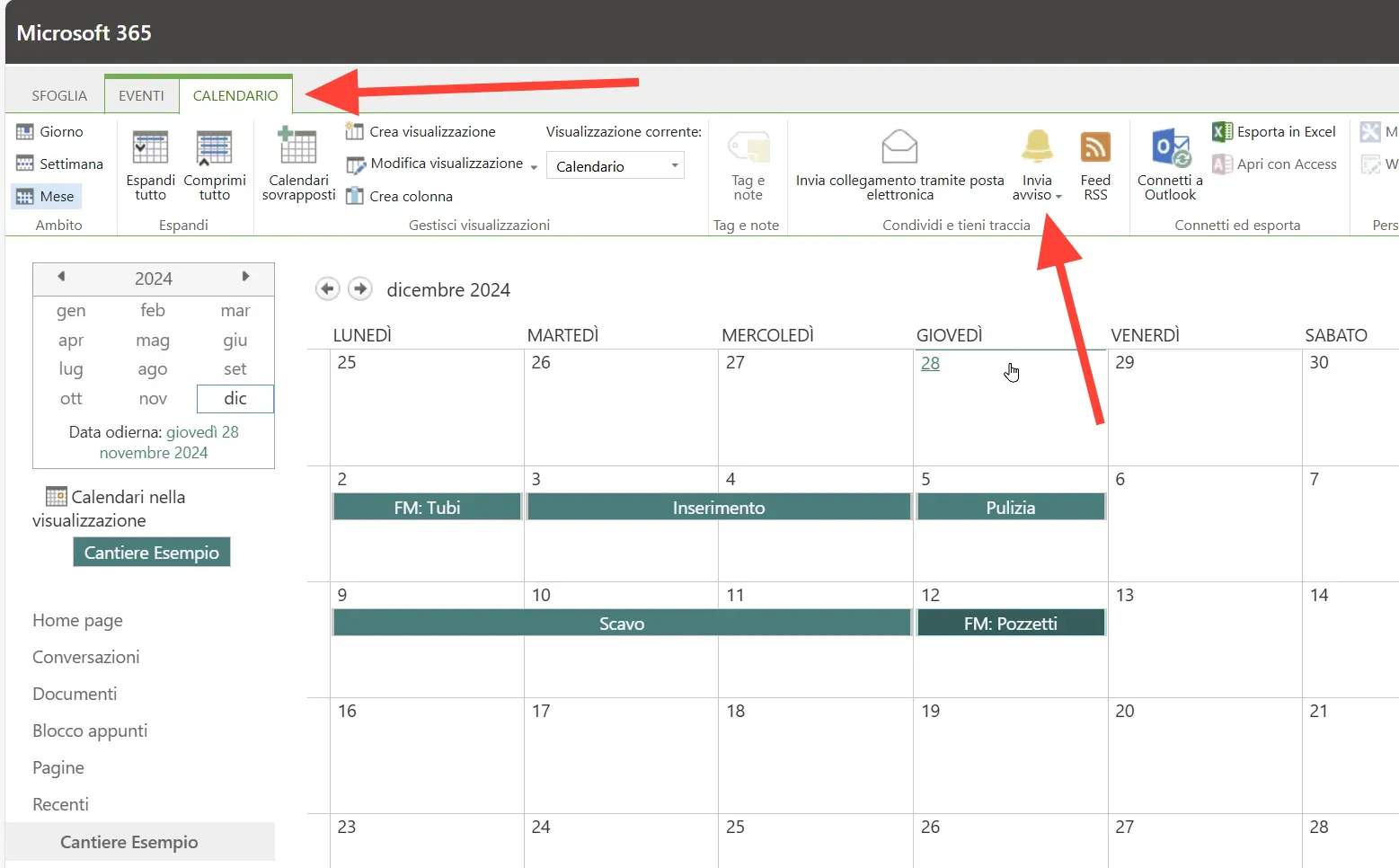 Notifications for the entire calendar:
- Click on the „Calendar“ tab“
- Select „Add notification“
- Configure the notification settings according to your wishes
Configure e-mail notifications
You have various options to choose from when setting up e-mail notifications:
Type of changes:
- Notification of all changes
- Only for new entries
- Only for changes to existing elements
- Only for deleting elements
Who makes changes:
- Notification of changes by anyone
- Only for changes made by other persons (i.e. not yourself, only others)
- For changes to elements that you have created
- For changes to elements that you last edited
Frequency of notifications:
- Immediate notification of every change
- Once a day (e.g. at 7 a.m.)
- Once a week (e.g. Mondays at 2 pm before a meeting)
Please note that you can unsubscribe from the notifications at any time via a link in the notification e-mail.
Connect calendar with Outlook
To synchronise the SharePoint calendar with Outlook, follow these simple steps:
- Open the SharePoint calendar in your browser
- Click on the „Outlook“ button“
- Follow the instructions to establish the connection
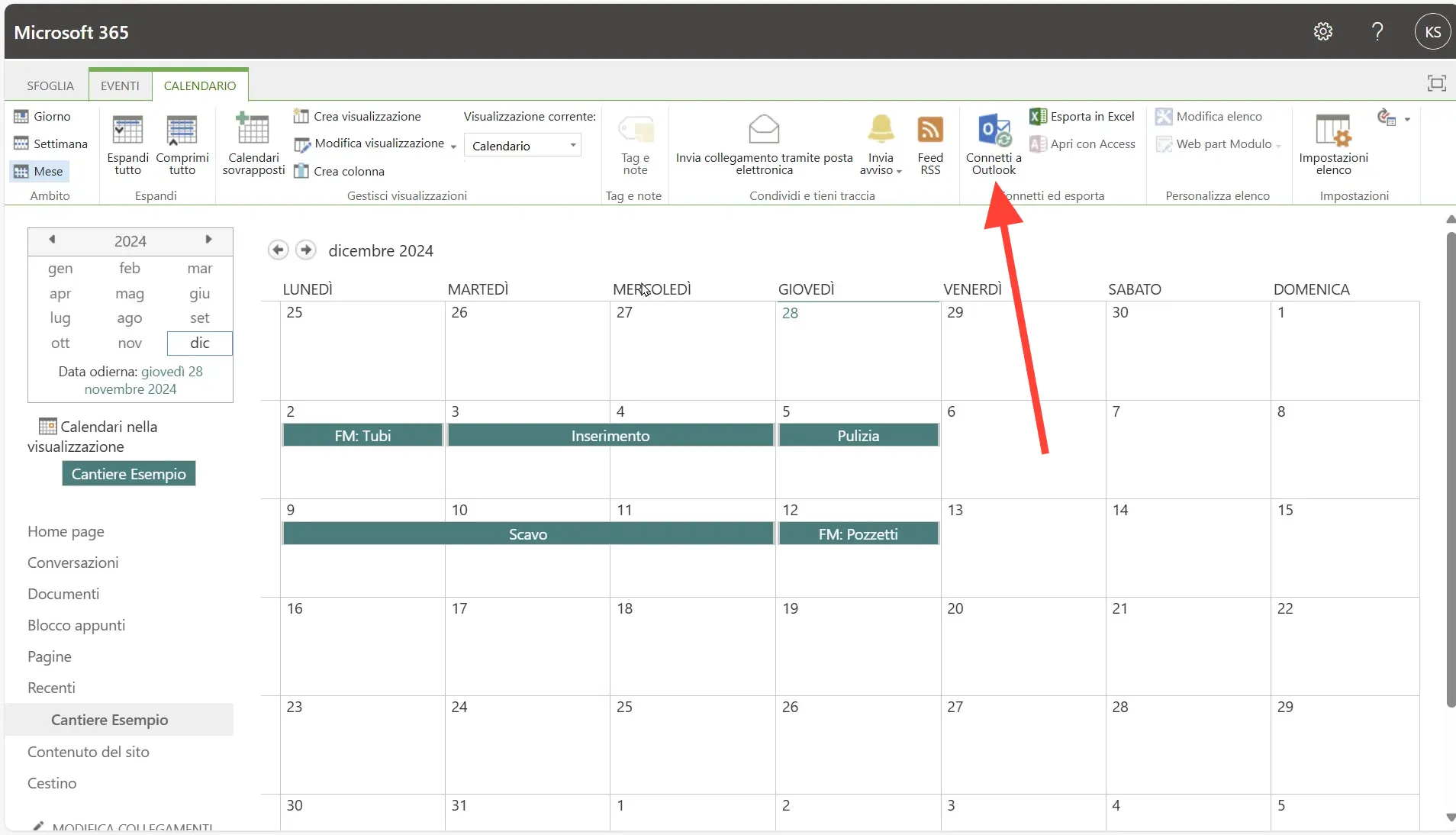
Once connected, you can view and edit the calendar directly in Outlook. This enables seamless integration into your daily workflow.
Frequently asked questions (FAQ)
Can I have multiple calendars on one SharePoint site?
Yes, you can create multiple calendars on one SharePoint page. This is particularly useful if you want to manage different aspects of a project (e.g. customer events, project phases, school holidays in the three relevant federal states) or several construction sites on one page.
How often are the notifications sent?
You can set the frequency of the notifications yourself. The options range from immediate notifications every time a change is made to weekly summaries.
Can I also use the calendar offline?
If you synchronise the calendar with Outlook, you can also access the information offline. Please note, however, that changes are only synchronised when you are online again.
Who can make changes to the calendar?
The authorisations for the calendar can be defined by the SharePoint administrator. Normally, all team members with access to the SharePoint site can view and edit the calendar.
Can I also share the calendar with external service providers?
Yes, you can also share the entire SharePoint site (or individual folders of a document library and/or one or more calendars) with external persons (who can then also connect the calendars to their own Outlook and view and edit them there).
With these features and tips, you can effectively manage your construction site calendars in SharePoint and share them with your team. The integration with Outlook and the flexible notification options help you to stay up to date and coordinate your projects efficiently.