Activate, start and stop dictation in Office
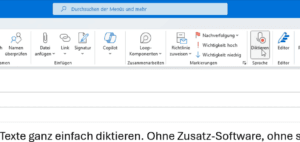
To use the dictation function in Office 365, simply open a new Outlook e-mail, a Word document or a page in OneNote. On the tab that is usually activated first in the menu bar - in Outlook the Message tab, tab in Word and OneNote, the Start - you will then find a group Language with a small microphone symbol for Dictation. Click on it once or use the key combination Alt + Ö.
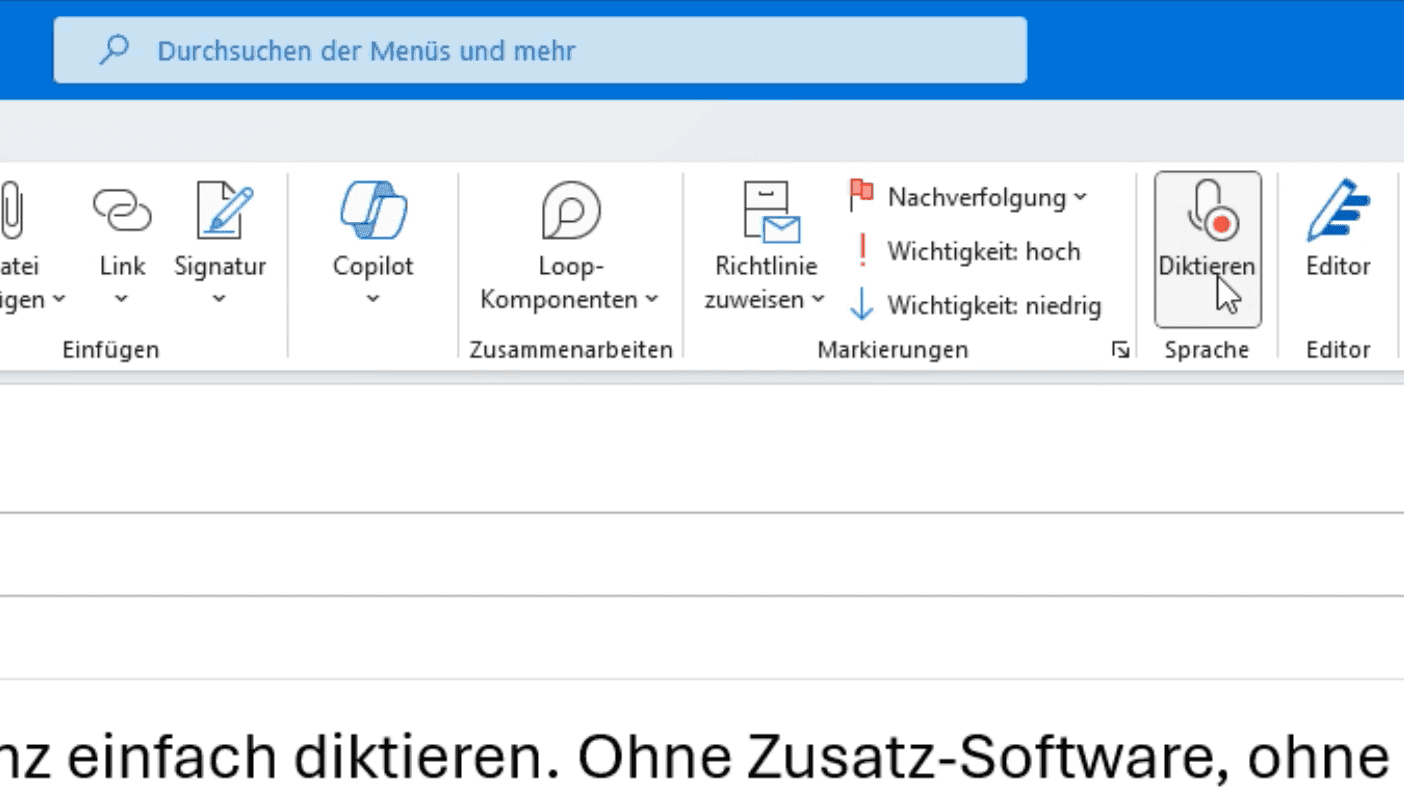
Simple control of the dictation function
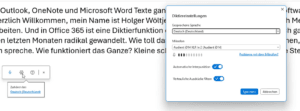
When you click on the microphone icon, your dictation function is active. A small, floating toolbar appears to control your voice input. You can drag this bar to a suitable place on the screen where it is not in your way.
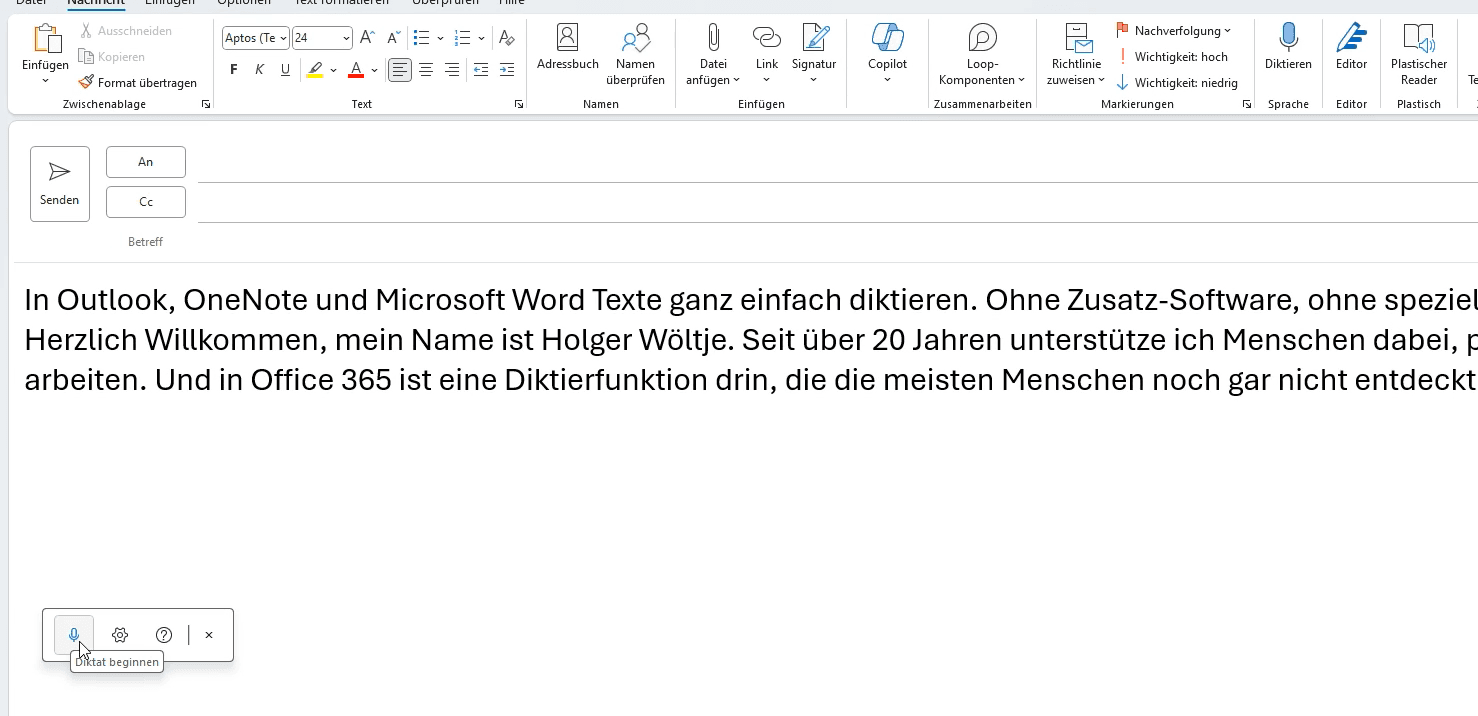
The small microphone icon is circled when the dictation function is active and listening to your voice input. To deactivate the dictation function, click on the icon again or use the microphone icon again. Alt + Ö.
Customise settings
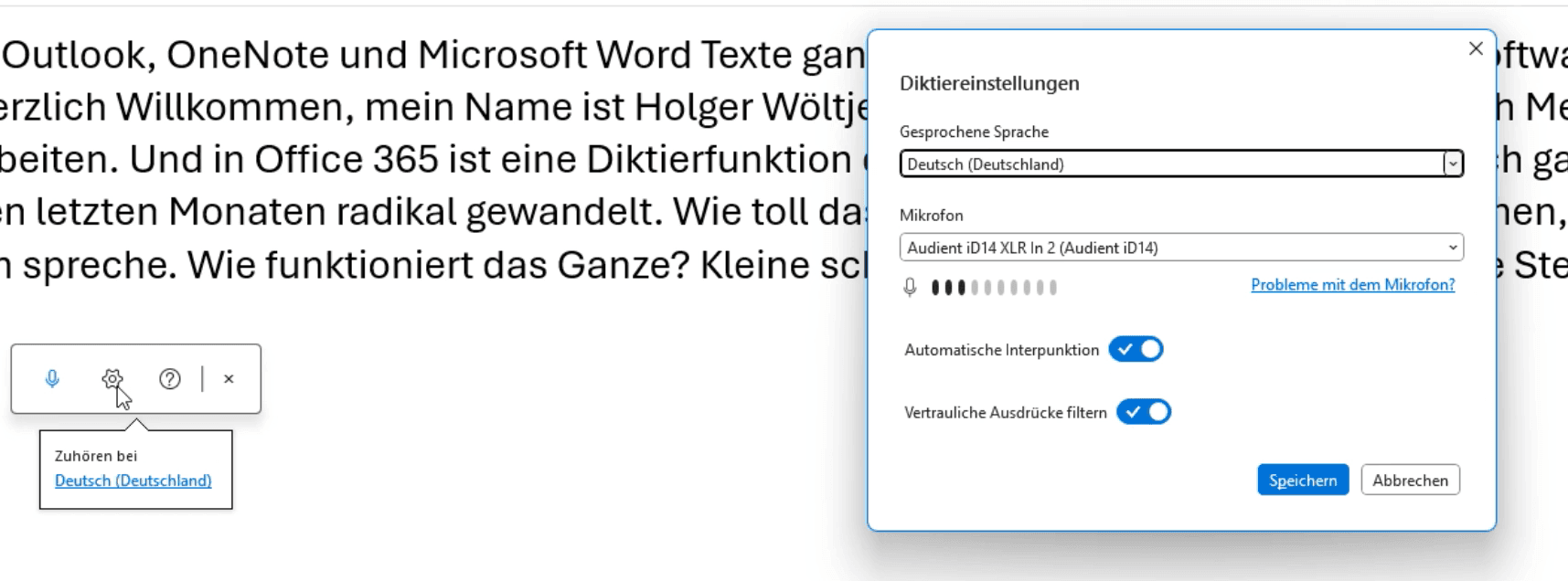
Use the small cogwheel in the toolbar to select the correct microphone and change the language if required.
-
- Microphone selectionSelect the microphone you want to use. For laptops, the built-in microphone is often sufficient; high-quality models (e.g. from Lenovo or HP) work particularly well here. If you use a headset (e.g. for video conferences/team meetings), simply try out whether the recognition works even better with it.
-
- Automatic punctuation: Switch this option on. It works very well.
-
- Filter confidential expressionsActivate this option to replace swear words etc. with asterisks.
Set language
If you sometimes use English expressions in your German texts, these are often recognised correctly. However, whole sentences in another language usually lead to errors. Simply adjust the Spoken language in the settings if you are dictating in a different language. Then switch back again when you dictate in German again.
Tips
-
- New paragraph and new line: Say „new paragraph“ or „new line“ to format the text accordingly.
-
- Check microphone: Make sure that a.) you have selected the correct microphone (e.g. your headset instead of a microphone integrated in the webcam) and b.) your microphone is working properly (e.g. the mute function on the headset is deactivated) before you start dictating.
„I have the impression that when it comes to dictation with Office 365, we have now arrived at the level of technology that we always wanted 20 years ago.“ - Holger Wöltje
There are no spelling errors when dictating - only speech recognition errors. However, these are relatively rare, as the accuracy of recognition has improved considerably.
A few more application examples:
You can significantly increase your efficiency with the dictation function:
-
- Writing emails: Instead of laboriously typing, simply dictate your e-mails.
-
- Create documents: Capture long texts faster.
-
- Notes in OneNote: Quickly file thoughts and create structured notes.
Try it out for yourself and experience how this function can make your work easier.
Frequently Asked Questions
What voice commands can I use for dictation in Office 365?
You can simply speak in commands such as „new paragraph“, „new line“ and various punctuation marks such as commas, full stops, etc. The software inserts these accordingly. The software inserts these accordingly.
How do I activate the dictation feature in Outlook?
Press the Alt+Ö key combination or click the microphone icon.
Does dictation work in Outlook and Word in English/other languages too?
Yes, you can switch the language via the cogwheel icon (in the dictation toolbar).
4 Which Office version supports the dictation function?
The dictation function is integrated into Office 365 and works in Outlook, OneNote and Word.
Do I need a special microphone for dictation?
The built-in laptop microphone is often sufficient, but a headset will improve recognition quality.