Advantages of targeted alarm utilisation
If you switch off the alarms, you will work more productively:
- Focussed workYou are not constantly interrupted by e-mails that can wait or are unimportant.
- PrioritisationYou won't miss any important e-mails because you set targeted notifications (which you will then notice more consciously because Outlook displays fewer and less frequent pop-up windows instead of three hundred times a day).
- Time management: You can process e-mails in a bundle/block, which is less annoying and you finish faster.
„Have you ever thought about how often unnecessary email notifications interrupt you? If you switch off the alerts, you will work more efficiently and have more time for important tasks.“ Holger Wöltje
Deactivate alerts for new Outlook emails (click by click)
To switch off the alarm for new e-mails:
- Click on the command „File“ (far left in the Outlook ribbon).
- Then select „Options“ (bottom left)...
- ... and in the Outlook options that then open in the top left-hand corner „E-Mail“.
- Scroll down to the heading „Message inbox“.
- Uncheck the following options to deactivate all notifications:
- „Play sound“
- „Change mouse pointer“
- „Show envelope symbol“
- „Show desktop notification“
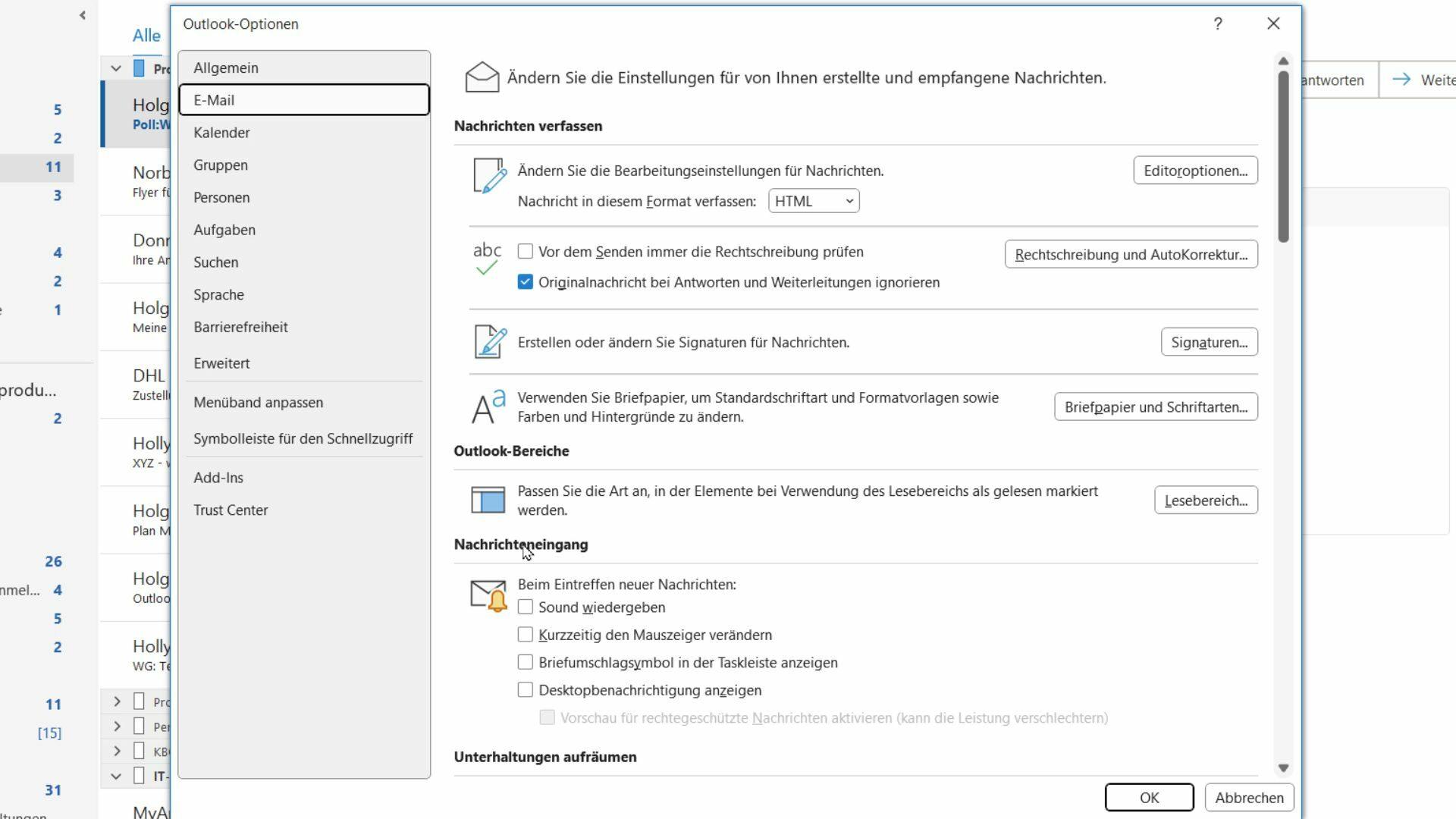
These settings prevent you from being disturbed by unimportant e-mails. Deactivate all checkboxes and confirm with OK.
Reactivate desktop notifications for certain emails
Sometimes there are emails that require your immediate attention, for example messages from your boss. To reactivate notifications for certain senders:
- Search for an e-mail from the sender (e.g. your boss).
- Right-click this e-mail and select the command „Rules“ Yes? „Create rule“.
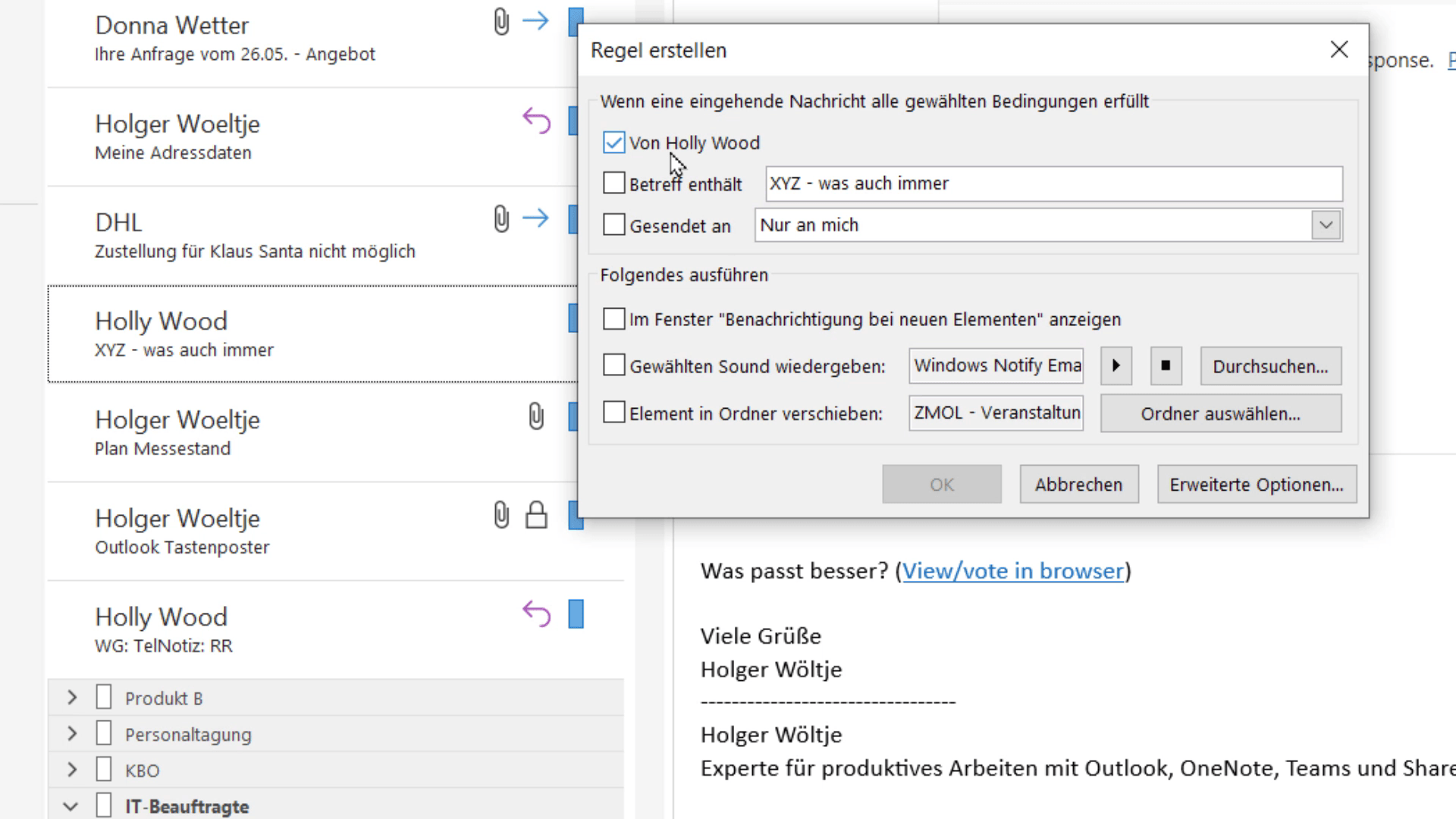
Outlook automatically adopts the sender and subject of the clicked e-mail and opens a new dialogue box „Create rule“. Here you define the emails for which the rule is executed:
- „From...“ / SenderSelect the person in question here (The sender of the email you clicked on the right to create the rule is already entered, e.g. „From Holly Wood“. Simply tick the checkbox - see screenshot - to apply the rule only to emails from this person).
- „Perform the following“ (Select action): Here you can specify which notification you would like to receive, for example „Play selected sound“ or „Advanced options“, to set more details and „Show desktop notification“ to select.
Example:
If your boss flags important emails with the subject „URGENT“, you can create a rule that only plays a sound for these emails:
- Activate the option „Subject contains“.
- Enter the word „EILT“ in.
- Select the desired notification.
Confirm with „OK“, to save the rule. From now on, you will only receive a notification for these specific emails.
Frequently Asked Questions
How do I deactivate all e-mail notifications in Outlook?
In the ribbon, select „File -> Options -> E-mail“ and remove all tick marks under „Message inbox“ (see above for details).
Can I only activate notifications for certain senders?
Yes, this is possible. Right-click on a mail from the desired sender and define a rule via „Rules -> Create rule“ (the sender is already preselected. You set the notification and confirm with „OK“).
What do I do if I need peace and quiet but still don't want to miss urgent emails?
Use a rule to set up desktop notifications only for important senders or certain keywords in the subject line. This way, you won't be disturbed and won't miss any important messages.
How do I create a rule for emails with certain words in the subject line?
When creating the rule, select „Subject contains“ (or in the advanced options „with certain words in the subject“) and enter the desired word.
Why should I deactivate the alarm function?
Constant email notifications interrupt your work and reduce your productivity. If you switch off these notifications, you can stay focussed.
In short: use the notification functions in Outlook sensibly and customise them to your needs. This will help you keep track of your emails and work more effectively instead of being constantly distracted. Try it out and enjoy the peace and quiet at work!